The weekly review
Five checks, in this order. Start with the whole project and finish on the end date.
Take the big picture
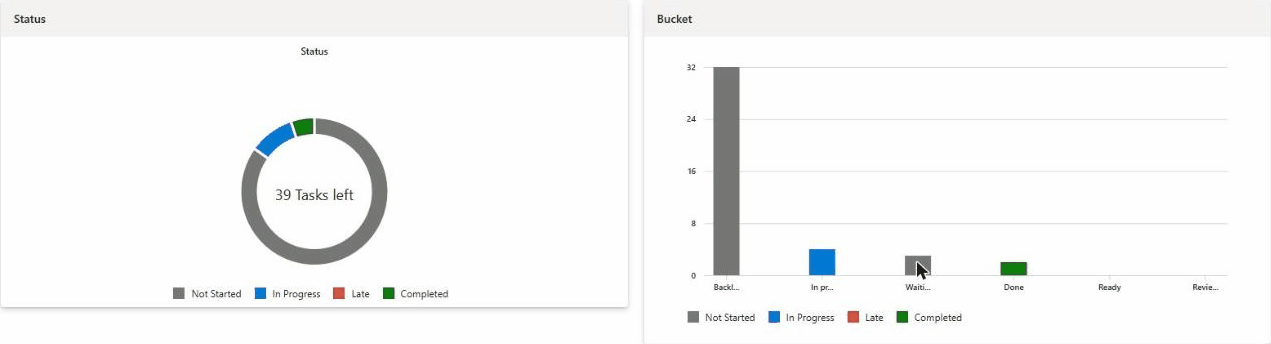
Fig 30.1Charts view at the start of the review.
Status: how many tasks are left, and whether any show as Late (red). 39 when this was recorded.
Bucket: the Waiting on others column. Anything here is stuck on someone else.
What’s due
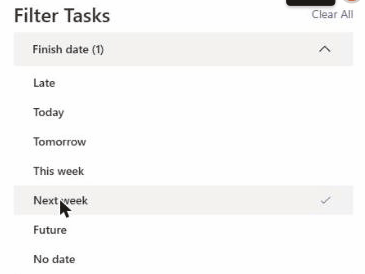
In the Grid, open Filters, then Finish date.
Tick Next week. The Grid now lists only what’s due soon.
Read the blocker
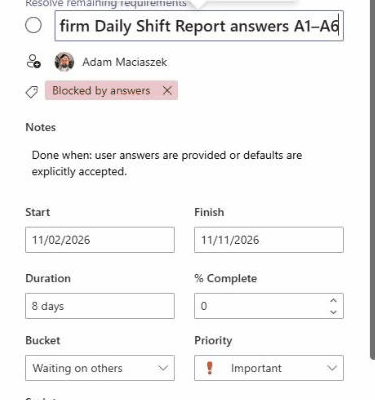
Open the task with the red Blocked by answers label.
Read its note. It says what “done” looks like.
Check it still sits in Waiting on others.
Update progress
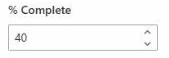
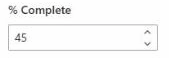
Update % Complete on anything that moved this week. In the clip, Resolve open sheet questions goes from 40 to 45. Effort hours update with it.
Fig 30.4The one value that changed in this review.
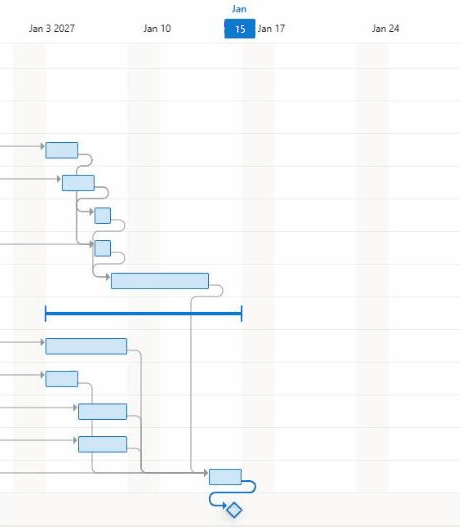
Confirm the end date
Click Clear all on the filters, open Timeline, and scroll to the end. The highlighted column is 15 January.
The final milestone diamond should still sit on Friday 15 January 2027.
Fig 30.5Timeline at weekly zoom, scrolled to the end of the plan.
Stretch the late task (lesson 22), then check the milestone again before you finish.
Fig 30.6Recording, 53 s: the whole review, start to finish.
Click to play full size